- What you need: A Fire TV Stick, Android TV box, or NVIDIA Shield; a TiviMate install (via Downloader or the Google Play Store); and an active M3U URL or Xtream Codes login from your IPTV provider.
- Best player version: TiviMate Companion (the paid unlock) gives you multiple playlists, catch-up, and EPG — worth the one-time cost.
- Critical setting: Set your EPG refresh interval to every 24 hours and your buffer size to at least 5 seconds to prevent freezing on busy channels.
- IPTV LEX compatibility: IPTV LEX works with TiviMate on Fire TV, Android TV boxes, NVIDIA Shield, and more — 25,000+ live channels, 60,000+ VOD titles, EPG included.
- Free trial available: You can test IPTV LEX for 24 hours before committing to a plan.
- Plans start at $12.99/month for a single device, dropping to roughly $4.17/month on the 24-month plan.
What TiviMate Is and Why It Beats the Alternatives
TiviMate is an IPTV player built specifically for Android TV and Fire TV devices. It reads M3U playlists and Xtream Codes credentials, organizes your channels into a proper TV-guide grid, and plays streams through a clean, remote-friendly interface. A proper iptv setup guide almost always recommends it first, and for good reason.
Why does it beat the competition? The interface is the main reason. Most IPTV players feel like they were designed for a mouse. TiviMate was designed for a remote — every menu, every scroll, every channel switch responds instantly. The EPG grid looks like a cable guide, which matters when you're browsing 25,000+ channels and need to find something quickly.
The free version works, but it only supports one playlist and locks out catch-up. TiviMate Companion — a small annual subscription you buy inside the app — unlocks multiple playlists, recording, catch-up, and panel customization. If you're pairing TiviMate with a serious iptv subscription, Companion is non-negotiable.
One thing worth knowing: TiviMate is a player, not a provider. It doesn't come with channels. You supply the content through a playlist URL or Xtream Codes login from your IPTV service. The player just presents it beautifully.
Devices That Support TiviMate IPTV Player Setup
TiviMate runs on Android TV and Fire OS. That covers more hardware than most people expect.
- Amazon Fire TV Stick and Fire TV Cube — the most popular combination by far. Requires sideloading via Downloader since TiviMate isn't in the Amazon Appstore.
- Android TV boxes — any box running Android TV or Google TV. Installation is straightforward through the Play Store.
- NVIDIA Shield TV and Shield Pro — runs TiviMate natively from the Play Store. The Shield's processing power makes 4K streams genuinely smooth.
- Smart TVs with Android TV built in — Sony and some Philips models. Check your TV's Play Store for availability.
- Chromecast with Google TV — supported, though the interface adapts slightly to the smaller remote layout.
TiviMate does not run on iPhone, iPad, Samsung Tizen TVs, LG webOS, or Windows natively. If you're on one of those platforms, multi device iptv players like IPTV Smarters Pro are better alternatives for those specific devices.
My own setup is a Fire TV Stick 4K Max paired with an IPTV LEX subscription. I tried two other players before settling on TiviMate, and the difference in channel-switching speed alone made the switch worth it.
How to Install TiviMate on Fire TV Stick (Step by Step)
Fire TV Stick is where most people start, so here's the exact process. It takes about ten minutes the first time.
- Enable apps from unknown sources. Go to Settings → My Fire TV → Developer Options → Apps from Unknown Sources → turn it on.
- Install Downloader. Search the Amazon Appstore for "Downloader" by AFTVnews. Install it and open it.
- Enter the TiviMate URL. In Downloader's URL bar, type the direct APK address for TiviMate (search "TiviMate APK latest" on a browser to find the current link from the official TiviMate site). Download and install the APK.
- Open TiviMate. Find it in your apps list. On first launch, it asks you to add a playlist.
- Install TiviMate Companion. Inside TiviMate, go to Settings → TiviMate Companion. Follow the in-app purchase flow to unlock the premium features.
A mistake I made the first time: I skipped the Companion step and added my playlist, then spent an hour wondering why catch-up wasn't working. Install Companion before you add your playlist — it saves you a restart cycle.
For Android TV boxes and NVIDIA Shield, skip steps 1–3. Just search "TiviMate" in the Google Play Store and install it directly. Much simpler.
Adding Your IPTV LEX Playlist to TiviMate
Once TiviMate is installed, you need to connect it to your IPTV service. IPTV LEX sends your login details by email after payment. Those details come in two formats: an M3U URL or Xtream Codes credentials (a server URL, username, and password). TiviMate handles both.
Using an M3U URL
Open TiviMate → Add Playlist → M3U Playlist. Paste your M3U URL into the field. TiviMate will fetch the playlist and populate your channel list. For a service with 25,000+ channels, this can take 2–3 minutes on the first load. Let it finish.
Using Xtream Codes
Open TiviMate → Add Playlist → Xtream Codes. Enter the server URL, your username, and your password exactly as they appear in your welcome email. This method is slightly faster to load and gives TiviMate direct access to your EPG and VOD library.
After the playlist loads, go to Settings → Playlist → EPG Source and make sure your EPG URL is populated. IPTV LEX includes EPG data, so your channel guide should fill in automatically within a few minutes. If it doesn't, tap "Update EPG" manually.
Need help getting your credentials? IPTV LEX offers 24/7 support on WhatsApp and email — the team responds fast.
The Settings That Actually Matter
Default TiviMate settings are fine for casual use. But if you're watching live sport or high-bitrate 4K content, a few adjustments make a real difference.
Buffer Size
Go to Settings → Player → Buffer Size. Set it to at least 5 seconds. On a slower connection, push it to 10. This gives the player enough runway to absorb minor network hiccups without freezing mid-stream. I run mine at 8 seconds and rarely see a buffer event.
EPG Refresh Interval
Settings → Playlist → Update Interval. Set this to every 24 hours. Refreshing too often wastes bandwidth and can slow down the app. Once per day is plenty for a service that updates its guide regularly.
Video Player
TiviMate uses its own internal player by default. For 4K HDR content, switch to an external player like VLC or MX Player if you notice color issues. Most users on Fire TV Stick 4K Max won't need this, but it's worth knowing the option exists.
Channel Groups
With 25,000+ channels, the full list is overwhelming. Use Settings → Groups to hide categories you don't watch. I keep sports, news, and a handful of country-specific groups and hide everything else. The guide becomes usable immediately.
For a broader look at optimizing your streaming setup across different apps and devices, the IPTV LEX blog has detailed per-device guides worth bookmarking.
TiviMate IPTV Player Setup: Troubleshooting Common Problems
Something not working? Here are the most common issues and their actual fixes — not the generic "restart your router" advice.
Channels Not Loading After Playlist Import
This almost always means the M3U URL is wrong or expired. Copy the URL directly from your welcome email, don't retype it. If the URL is correct, check that your subscription is still active. Log into your provider's portal or contact support to confirm.
EPG Not Showing
Go to Settings → Playlist → EPG Source and verify the URL is populated. Then tap "Update EPG" and wait 3–5 minutes. If the guide still doesn't load, your EPG URL may be different from your M3U URL — check your welcome email for a separate EPG link.
Buffering on Specific Channels
Buffering on one channel but not others usually points to a stream issue on that specific channel, not your connection. Try the same channel at a different time. If it's buffering across all channels, run a speed test. You need at least 25 Mbps for stable 4K streams and 10 Mbps for HD.
TiviMate Companion Purchase Not Recognized
This happens when the Google account on your Fire TV doesn't match the account used to buy Companion. Open the Companion app, sign in with the correct Google account, and then relaunch TiviMate. The unlock applies instantly.
Still stuck? IPTV free trial users can test streams before committing, which is a good way to confirm your setup is working before you pay for a longer plan.
Choosing the Right IPTV LEX Plan for TiviMate
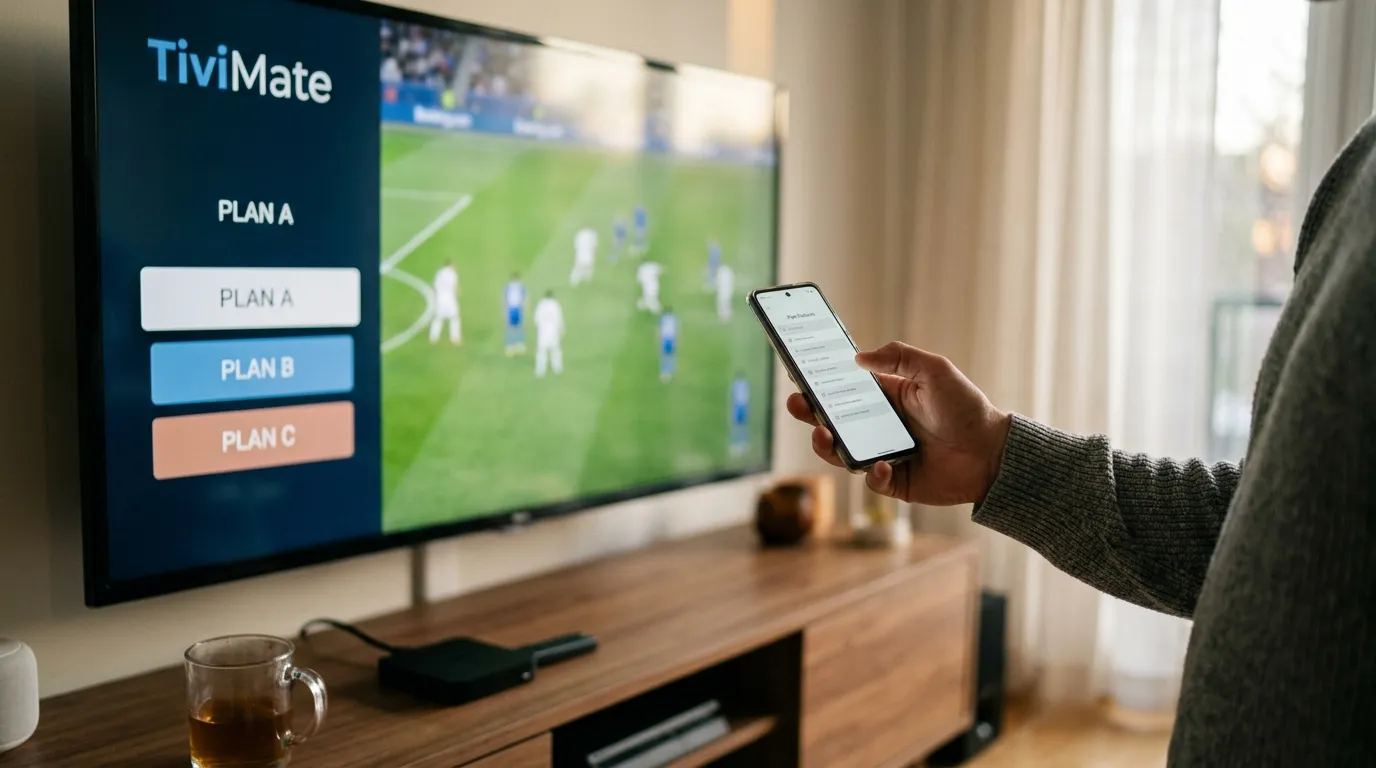
TiviMate supports multiple playlists simultaneously (with Companion). That means you can run one IPTV LEX subscription across several devices — as long as you pick the right plan upfront.
| Plan | Devices | 1 Month | 6 Months | 12 Months |
|---|---|---|---|---|
| Single | 1 | $12.99 | $49.99 Popular | $59.99 |
| Duo | 2 | $22.99 | $89.99 | $107.99 |
| Family | 3 | $29.99 | $119.99 | $144.99 |
| Large | 4 | $37.99 | $149.99 | $189.99 |
| Max | 5 | $45.99 | $179.99 | $229.99 |
None of these plans auto-renew. You pay once and it runs until the period ends — no surprise charges. The 24-month single-device plan works out to about $4.17 per month, which is hard to beat for access to 25,000+ live channels and 60,000+ VOD titles in HD, FHD, and 4K.
If your household has two TVs running TiviMate simultaneously, the 2-device plan is the right call. "Simultaneously" is the key word — devices count only when they're actively streaming at the same time. Check the IPTV LEX multi-device page for the full breakdown.
Getting the Most Out of TiviMate Long-Term
Setup is the easy part. Getting consistent value from TiviMate over months of daily use takes a few habits.
Organize Your Favorites Early
TiviMate lets you add channels to a Favorites group. Do this on day one, before the full channel list becomes noise. I have about 40 channels in my Favorites — that's the only group I open 90% of the time. The full 25,000-channel list is there when I want to explore, but Favorites keeps daily viewing frictionless.
Use Catch-Up Regularly
IPTV LEX includes catch-up on supported channels. In TiviMate, catch-up appears as a clock icon on the channel tile. Press it, scroll back through the timeline, and watch anything from the past several hours. This feature alone replaces the need for a DVR in most households.
Keep the App Updated
TiviMate releases updates that fix player bugs and improve EPG parsing. On Fire TV, you'll need to re-sideload new APK versions manually. On Android TV via Play Store, updates are automatic. Check for new versions every month or so.
Test Before a Big Event
If you're planning to watch something important — a major live sports event, a season finale — test the stream an hour before. Confirm the channel loads, the picture is sharp, and the audio is in sync. Doing this at the last minute is how you end up troubleshooting during the opening kick.
For households with multiple viewers on different devices, the multi device iptv plans from IPTV LEX let everyone run TiviMate independently on their own screen without interrupting each other's stream.
Not sure whether IPTV LEX is right for your setup? Grab an iptv free trial and run TiviMate through its paces for 24 hours before deciding. That's enough time to check picture quality, EPG accuracy, and stream stability across a range of channels — everything that matters in a real-world tivimate iptv player setup.
Frequently Asked Questions
Do I need to pay for TiviMate to use it with IPTV LEX?
The free version of TiviMate works for basic playback with a single playlist. TiviMate Companion — the paid unlock — adds multiple playlists, catch-up, recording, and advanced customization. If you're using IPTV LEX with its full EPG and catch-up features, Companion is worth buying. It's a small one-time or annual cost relative to what it unlocks.
What's the difference between M3U and Xtream Codes in TiviMate?
Both methods connect TiviMate to your IPTV service. M3U is a playlist file URL that TiviMate downloads and parses. Xtream Codes is a direct API connection using a server address, username, and password. Xtream Codes tends to load faster and gives TiviMate better access to VOD and EPG data. Use whichever format your provider supplies — IPTV LEX supports both.
Why is my EPG not loading in TiviMate?
The most common cause is a missing or incorrect EPG URL. Check your IPTV LEX welcome email for the EPG link and paste it into Settings → Playlist → EPG Source inside TiviMate. Then tap "Update EPG" and wait a few minutes. If the guide still doesn't populate, contact IPTV LEX support on WhatsApp — they can resend your credentials and confirm the correct EPG URL.
Can I use TiviMate on more than one device with one IPTV LEX subscription?
Yes, but you need a multi-device plan. The device count refers to simultaneous streams — how many screens can watch at the same time. IPTV LEX offers plans for 2, 3, 4, and 5 simultaneous devices. Each device runs its own TiviMate instance with the same playlist credentials. See the multi device iptv options for current pricing.
Does TiviMate work on iPhone or Samsung Smart TV?
No. TiviMate only runs on Android TV and Fire OS. For iPhone or iPad, IPTV Smarters Pro is a solid alternative. For Samsung Tizen Smart TVs, a Fire TV Stick plugged into the HDMI port is the easiest workaround — it runs TiviMate perfectly and costs very little.
How do I get started with IPTV LEX if I've never used IPTV before?
Request a free 24-hour trial on the IPTV LEX free trial page — you'll need your name, email, and WhatsApp number. Once you receive your credentials, follow the playlist setup steps in this guide to connect TiviMate. If anything goes wrong, the IPTV LEX support team is available 24/7 on WhatsApp at +44 7988 580169 or by email at support@iptvlex.com.
Not sure yet? Test IPTV LEX free for 24 hours
- Full channel + VOD access
- Credentials by email
- Works on any device