- You can watch IPTV on a Windows PC using free players like VLC or IPTV Smarters Pro — no extra hardware needed.
- IPTV LEX gives you access to 25,000+ live channels and 60,000+ movies and series, all streamable on Windows.
- The best player for most Windows users is IPTV Smarters Pro, available from the Microsoft Store.
- A stable internet connection of at least 25 Mbps is recommended for 4K streams; 10 Mbps handles HD comfortably.
- Plans start at $12.99 for one month and drop to around $4.17/month on the 24-month plan — no auto-renewal ever.
- A free 24-hour trial is available before you commit to any plan.
Why Your Windows PC Is Already a Great IPTV Device
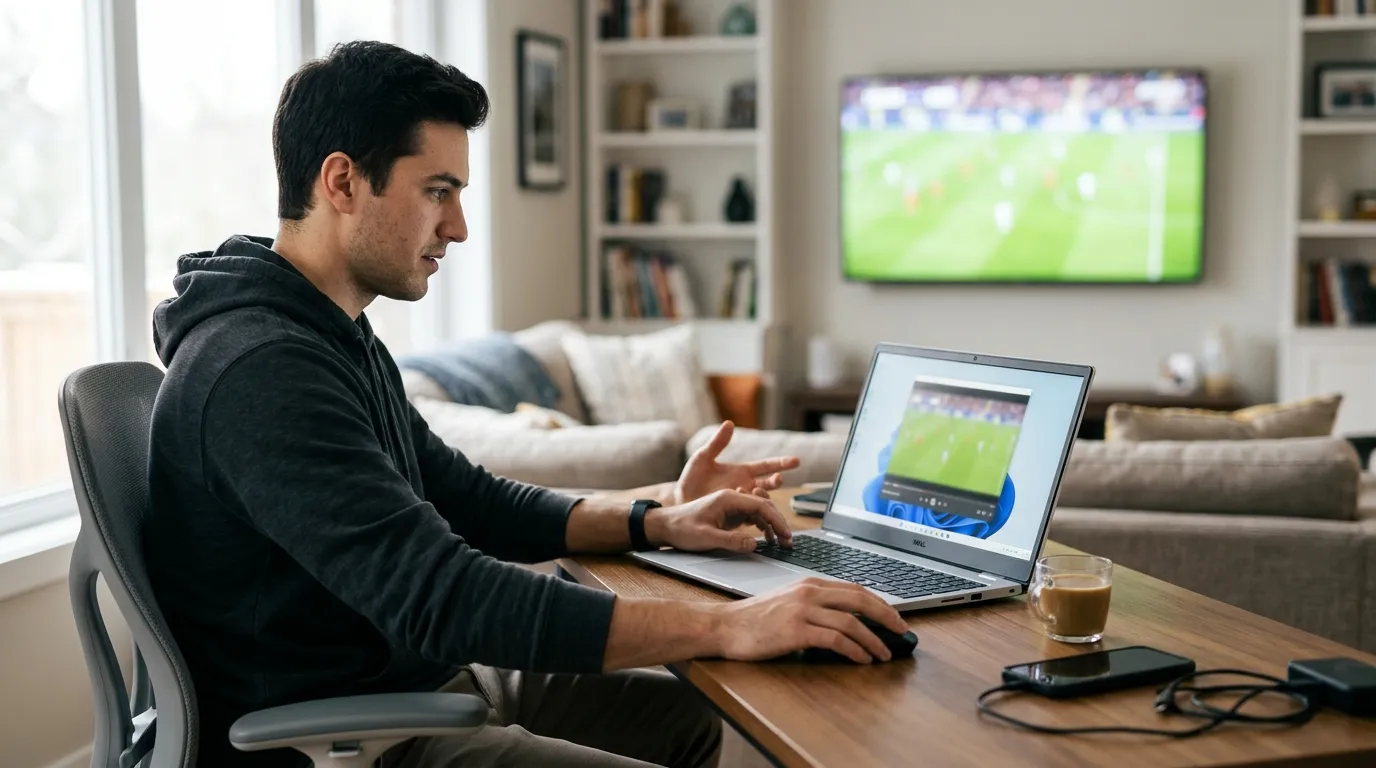
Running IPTV on PC Windows is one of the most underrated setups in the whole space. Most people assume you need a smart TV or a streaming stick. You don't. Your laptop or desktop already has the processing power, the screen, and the network connection to handle 4K streams without breaking a sweat.
The real advantage of a PC is flexibility. You can have a browser open on one half of the screen, a spreadsheet on the other, and a live sports channel running in a picture-in-picture window. No other device gives you that. I spent two years watching live matches exclusively on a Fire TV stick before I realized my PC was a better option the whole time — lower latency, sharper picture, and I could pause without losing my place in the EPG guide.
For a broader look at compatible devices, the IPTV subscription device guide covers every platform IPTV LEX supports, from Android boxes to Apple TV. But for Windows users, the path is particularly straightforward.
What makes Windows ideal:
- Most IPTV players have a native Windows version or a Microsoft Store app.
- You control hardware resources — close Chrome, free up RAM, and your stream gets smoother instantly.
- Keyboard shortcuts let you jump channels, adjust volume, and toggle full-screen faster than any remote.
- Screen mirroring to a TV via HDMI turns your PC into a proper home cinema setup in seconds.
Choosing the Right IPTV Player for Windows
The player you pick matters more than most guides admit. A bad player introduces buffering that isn't the stream's fault — it's the software struggling with the codec. So which player actually works?
IPTV Smarters Pro
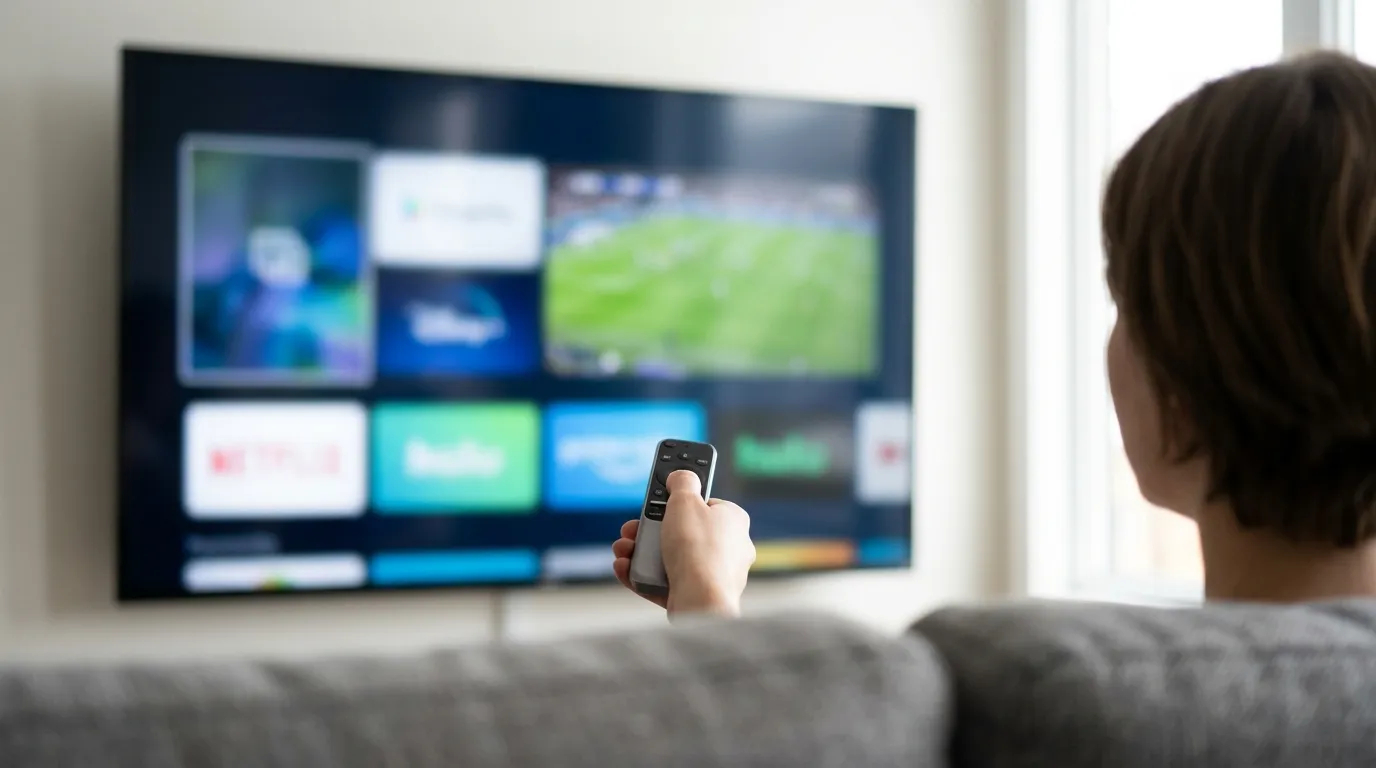
This is the one I recommend first. It's available in the Microsoft Store, so installation is clean and straightforward. The interface organizes live TV, VOD, and catch-up content into separate tabs, which keeps things tidy when you're browsing 25,000+ channels. It supports M3U playlists and Xtream Codes login — both of which IPTV LEX provides after you subscribe.
VLC Media Player
VLC is the veteran option. It handles almost every video format on the planet and loads M3U playlists directly from a URL. Go to Media → Open Network Stream, paste your M3U URL, and you're live. The downside is that VLC has no EPG guide built in, so you lose the TV-guide experience. Fine for casual viewing; limiting for daily use.
TiviMate (via Android Emulator)
TiviMate is technically an Android app, but it runs on Windows through an Android emulator. The interface is arguably the best in the industry — a proper TV-style guide with thumbnails, catch-up, and a slick channel-switching animation. If you're willing to spend 20 minutes setting up an emulator, the payoff is real. IPTV LEX works perfectly with TiviMate once you enter your Xtream Codes credentials.
For step-by-step instructions on loading your playlist into any of these players, the IPTV setup guide walks through the process in detail.
Getting Your IPTV LEX Subscription and Login Details
Before you open any player, you need a subscription and a set of credentials. Here's exactly how that works with IPTV LEX.
You visit the pricing page, pick a plan, and pay. IPTV LEX sends your login details by email — typically within minutes. Those details come in two formats: an M3U URL and Xtream Codes (a server address, username, and password). Both formats work on Windows. Xtream Codes is preferable because the player can pull EPG data and VOD categories automatically, rather than you managing a flat playlist file.
The plan options for a single device are:
| Plan | Price (1 device) | Monthly Equivalent |
|---|---|---|
| 1 Month | $12.99 | $12.99 |
| 3 Months | $34.99 | ~$11.66 |
| 6 Months (Most Popular) | $49.99 | ~$8.33 |
| 12 Months | $59.99 | ~$5.00 |
| 24 Months | $99.99 | ~$4.17 |
None of these plans auto-renew. That's worth highlighting because most streaming services bank on you forgetting to cancel. IPTV LEX doesn't work that way — you pay once, you get the period you paid for, and nothing charges your card automatically.
If you're watching on more than one screen — say your desktop and a laptop — the multi device IPTV plans let two to five devices stream simultaneously. The 2-device 12-month plan runs $107.99, which is still well under $10 per device per month.
Step-by-Step: Setting Up IPTV Smarters Pro on Windows
This is the setup I use personally. It takes about five minutes once you have your credentials.
- Install IPTV Smarters Pro from the Microsoft Store. Search "IPTV Smarters Pro" and install the official app.
- Open the app and select Login with Xtream Codes API on the welcome screen.
- Enter your credentials: the server URL, username, and password from the IPTV LEX welcome email. The URL goes in the "Server URL" field exactly as provided — include the port number at the end (usually something like
:8080or:80). - Wait for the playlist to load. With 25,000+ channels and 60,000+ VOD titles, this first sync can take 60–90 seconds. Don't close the app during this step — I made that mistake the first time and had to re-enter everything.
- Browse to Live TV and pick a channel. If it plays, you're done.
One concrete setting that makes a real difference: inside IPTV Smarters Pro, go to Settings → Player Settings and switch the default player to ExoPlayer. The built-in player sometimes struggles with FHD streams on older CPUs. ExoPlayer is more efficient and drops far fewer frames.
For troubleshooting any errors during setup, the IPTV setup guide on the IPTV LEX blog covers common error codes and their fixes.
Network Settings That Actually Affect Your Stream Quality
Poor stream quality on a Windows PC is almost never the service's fault. Nine times out of ten, it's a local network issue that takes two minutes to fix.
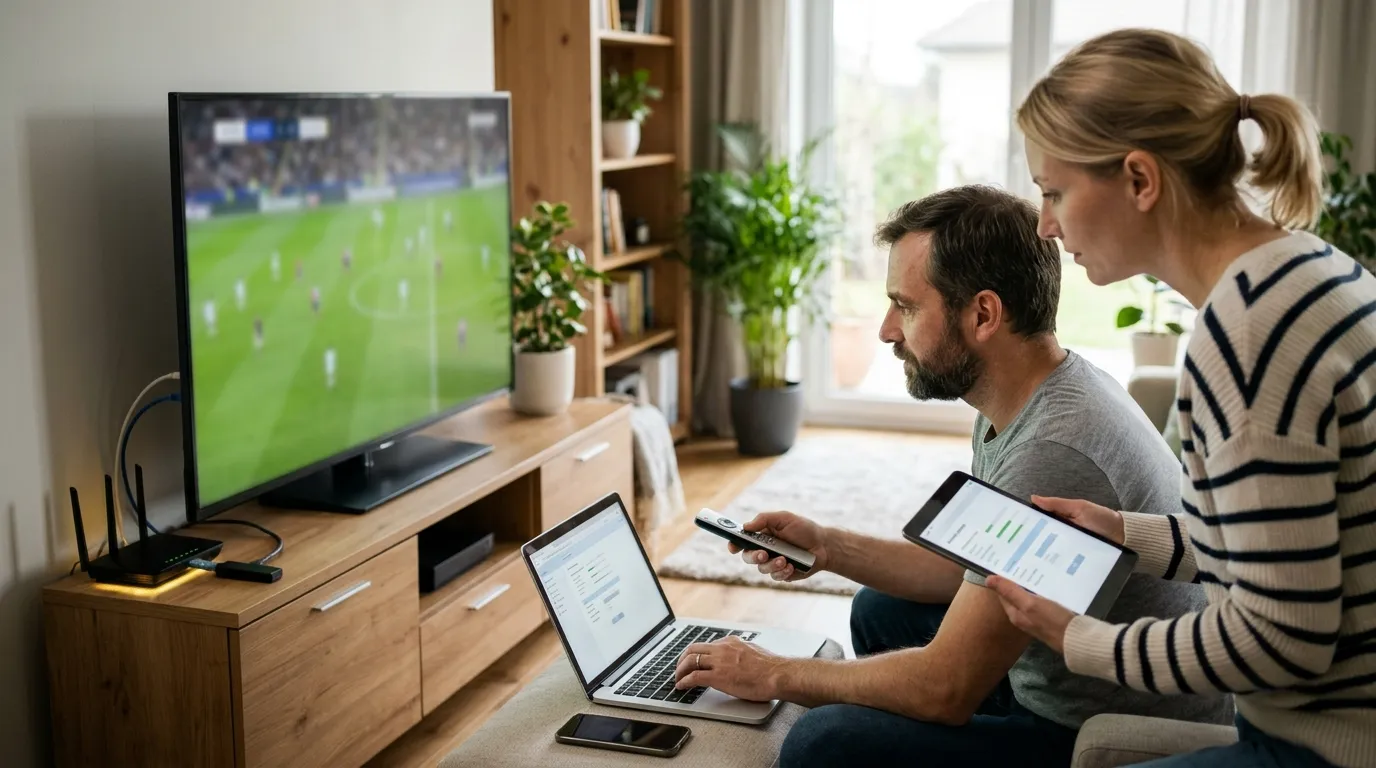
Wired vs. Wi-Fi
Use an Ethernet cable if you can. Wi-Fi introduces packet loss that's invisible in normal browsing but shows up as micro-freezes in video. A 4K stream needs a consistent 25 Mbps — not a peak of 25 Mbps, but a sustained floor. Ethernet gives you that. Wi-Fi on a busy home network often doesn't.
DNS Settings
Switching your Windows DNS from your ISP's default to a public DNS (like Cloudflare's 1.1.1.1 or Google's 8.8.8.8) can reduce stream startup time noticeably. Go to Control Panel → Network and Sharing Center → Change adapter settings, right-click your connection, choose Properties, select IPv4, and enter the DNS manually. I tested this on my own setup and startup time dropped from about 4 seconds to under 2.
Firewall Exceptions
Windows Defender Firewall occasionally blocks IPTV player traffic. If your stream connects but immediately drops, add your IPTV player as a firewall exception. Go to Windows Security → Firewall & Network Protection → Allow an app through the firewall and add the player executable.
Speed requirements at a glance:
- SD streams: 4–5 Mbps minimum
- HD (720p/1080p): 10–15 Mbps
- FHD streams: 15–20 Mbps
- 4K streams: 25 Mbps sustained
Still having issues after checking these? Reach the IPTV LEX support team directly — they're available 24/7 on WhatsApp at +44 7988 580169 or via IPTV subscription support at support@iptvlex.com.
What You Can Watch: Channels, VOD, and Catch-Up on Windows
The content library available through IPTV LEX is substantial. 25,000+ live TV channels from 150+ countries means you're not just getting English-language television — you're getting news, entertainment, and sports from across Europe, the Middle East, Asia, the Americas, and beyond.
The VOD side is equally deep. 60,000+ movies and series on demand covers recent theatrical releases, classic cinema, international drama, and documentary content. The catch-up feature is particularly useful on a PC because you can scroll back through the EPG and watch something that aired hours ago, just as you would with a DVR.
Stream quality tiers available:
- HD: Standard high-definition, 720p. Works well on any connection above 10 Mbps.
- FHD: Full HD 1080p. The sweet spot for most PC monitors.
- 4K: Available on select channels. Looks exceptional on a 4K monitor or when mirrored to a 4K TV via HDMI.
The anti-freeze server infrastructure that IPTV LEX runs is worth mentioning here. Traditional IPTV services drop streams during peak hours — live sporting events, major TV premieres — because their servers can't handle the load spike. IPTV LEX's anti-freeze servers are specifically built to stay stable under those conditions. In practice, this means fewer interruptions at exactly the moments when you don't want them.
For a full breakdown of what's included in each plan, the IPTV free trial FAQ page answers the most common questions about content availability and regional access.
The Free Trial: Test IPTV on Windows Before You Pay
Should you pay for a subscription before you've tested the service on your specific PC and network? No. IPTV LEX offers a 24-hour free trial, and you should use it.
The trial gives you real access — the same channels, the same stream quality, the same server infrastructure as a paid subscription. It's not a limited demo with five channels and a watermark. You get the full thing for 24 hours.
To request it, go to the IPTV LEX free trial page and fill in your name, email address, and WhatsApp number. The trial credentials arrive quickly, and you load them into your Windows player exactly as described in the setup section above.
What to test during those 24 hours:
- Load a 4K channel and check for buffering on your connection.
- Browse the VOD library and confirm the genres and languages you care about are well represented.
- Test the EPG guide and catch-up feature — scroll back a few hours and play something.
- Switch between channels quickly to gauge the channel-change speed (under 3 seconds is good).
- Try the stream on both Ethernet and Wi-Fi to understand the difference on your specific setup.
If everything checks out — and for most users it will — you can move straight to a paid plan. The IPTV free trial to paid conversion is straightforward: pick a plan on the pricing page, pay, and new credentials arrive by email.
Troubleshooting Common IPTV Issues on Windows PCs
Even a well-configured setup runs into the occasional hiccup. Here are the issues Windows users report most often and the fixes that actually work.
Stream Buffers Constantly
First, run a speed test at speedtest.net and confirm you're hitting the numbers listed in the network section above. If speeds are fine, the issue is usually the player's buffer size. In VLC, go to Tools → Preferences → Input/Codecs and increase the Network Caching value from the default 1000ms to 2000ms. In IPTV Smarters Pro, switching from the built-in player to ExoPlayer (as mentioned earlier) typically resolves this.
App Crashes on Launch
This is almost always a Windows graphics driver issue. Update your GPU drivers through Device Manager or directly from your GPU manufacturer's site. A fresh driver install fixed a crash-on-launch issue I had with IPTV Smarters Pro on a laptop with an integrated Intel GPU — something I spent an embarrassing two hours debugging before I tried the obvious fix.
EPG Not Loading
The EPG data is a separate pull from the channel stream. If channels play but the guide is blank, go into your player's settings and manually trigger an EPG refresh. In IPTV Smarters Pro, this is under Settings → EPG → Force Update. Give it 2–3 minutes on a slow connection.
Audio Out of Sync
VLC handles this elegantly — press G to delay audio by 50ms increments or F to advance it. In IPTV Smarters Pro, the audio sync offset is in the player controls during playback. A sync issue that persists across multiple channels usually points to a system audio driver problem, not the stream itself.
For issues that don't resolve with these steps, the IPTV free trial FAQ page has an extended troubleshooting section, and the 24/7 WhatsApp support line connects you with a real person who can dig into your specific setup.
Frequently Asked Questions
Can I watch IPTV on a Windows laptop as well as a desktop?
Yes, completely. The setup is identical on both. The only practical difference is that a laptop on Wi-Fi may experience more stream instability than a desktop on Ethernet. If you're watching on a laptop, sitting closer to your router or using a Wi-Fi extender makes a measurable difference for 4K streams.
Do I need a VPN to use IPTV on my Windows PC?
A VPN is not required for the service to work. Some users choose to use one for general privacy reasons, which is their preference. If you do run a VPN, make sure it's not throttling your bandwidth — some VPN servers introduce enough latency to cause buffering on HD streams. If buffering starts after you enable a VPN, that's your first thing to disable and test.
How many devices can I watch on simultaneously with IPTV LEX?
Single-device plans cover one screen at a time. Multi-device plans cover 2, 3, 4, or 5 simultaneous streams. So if you want your Windows PC and a family member's tablet running at the same time, you'd need at least the 2-device plan. The multi device IPTV pricing page lays out all the options and costs clearly.
What payment methods does IPTV LEX accept?
IPTV LEX accepts credit and debit cards (via a secure payment link sent by email), cryptocurrency (USDT, BTC, ETH, SOL, and LTC), gift cards, and bank transfer. Login credentials are sent after payment is confirmed. No plan auto-renews — every purchase is a single, one-time payment.
Is IPTV Smarters Pro free on Windows?
The IPTV Smarters Pro app itself is free to download from the Microsoft Store. You need an active IPTV subscription — like an IPTV LEX plan — to populate it with channels and content. The app is just the player; the subscription is the content source.
What internet speed do I actually need for a good experience watching IPTV on PC Windows?
For HD streams, 10 Mbps is a comfortable floor. For FHD 1080p, aim for 15–20 Mbps. For 4K, you want a sustained 25 Mbps — not just a peak during a speed test. If your connection fluctuates heavily, stick to FHD streams, which are far more forgiving and still look excellent on a PC monitor. The IPTV subscription device guide also covers bandwidth recommendations for other platforms if you're comparing setups.
Not sure yet? Test IPTV LEX free for 24 hours
- Full channel + VOD access
- Credentials by email
- Works on any device