- The most common cause of a broken EPG is a wrong or expired EPG URL — check it first.
- Time zone mismatches shift guide data by hours, making it look empty or out of sync.
- Most IPTV apps need a manual EPG refresh after you update any setting; it doesn't happen automatically.
- Cache build-up in apps like TiviMate and IPTV Smarters Pro blocks new guide data from loading.
- A working EPG depends on your provider sending guide data — if the URL is valid but the guide is blank, contact support.
- IPTV LEX includes EPG and catch-up in every plan; if yours is broken, a quick WhatsApp message usually fixes it in minutes.
What Actually Causes IPTV EPG Not Working
Your EPG breaks for one of a small number of reasons, and most of them are fixable in under five minutes. The guide data itself — programme titles, times, descriptions — comes from a separate URL that your IPTV app fetches on a schedule. If that URL is wrong, expired, or temporarily unreachable, the guide goes blank. That's the whole story, most of the time.
The trickier cases involve a mismatch between what your app expects and what your provider sends. For example, your playlist might use channel IDs that don't match the EPG source. The app loads the guide data just fine, but it can't map any of it to your channels — so every slot shows "No Information." I've seen this exact problem trip up people who switched providers and copied their old EPG URL into a new playlist. The URL worked, the data loaded, but the channel IDs were completely different. Blank guide, no obvious error message.
The main culprits, in rough order of how often they appear:
- Wrong or outdated EPG URL — the most common cause by far
- Time zone set incorrectly in the app or device settings
- Cache not cleared after changing settings
- EPG refresh interval too long — the app is showing stale data
- Channel ID mismatch between your M3U playlist and the EPG source
- Provider-side outage — the EPG server is temporarily down
- App bug or outdated app version
Start at the top of that list and work down. Nine times out of ten you'll fix it before you reach point four. For a broader look at setup and configuration, the IPTV LEX blog covers every major device and app scenario in detail.
Check Your EPG URL Before You Do Anything Else
Open your IPTV app's settings and find where the EPG source URL is entered. Copy it exactly and paste it into a browser on your phone or computer. Does it load? If the browser shows a wall of XML text, the URL is alive and serving data. If you get a 404, a timeout, or a blank page, that URL is dead — and that's your problem right there.
Where do you get the correct URL? From your provider, full stop. Log into your account portal or check the setup email you received when you subscribed. With IPTV subscription services like IPTV LEX, your EPG URL is included in the same credentials email as your M3U playlist link. If you've lost it, WhatsApp support at +44 7988 580169 can resend it within minutes — 24/7.
One thing worth knowing: EPG URLs often contain your username and password as query parameters. If you change your account password, the old EPG URL stops working immediately. That's a small but easy mistake to make, and it produces a perfectly blank guide with no error message to hint at the cause.
Paste the URL, Check the Response
A healthy EPG URL response looks like this in your browser:
- Starts with
<?xml version="1.0"or<tv> - Contains channel tags and programme tags with time attributes
- Loads within a few seconds (large EPG files can be 10–50 MB)
If the file loads but is very small — under 50 KB — it may be a placeholder or an error response dressed up as XML. That's a provider-side issue. Contact support rather than spending an hour adjusting app settings.
Fix the Time Zone Mismatch That Shifts Your Guide by Hours
This one fools a lot of people because the guide isn't blank — it's just wrong. You see programme titles, but they're all shifted by three or four hours. You tune to a channel expecting one show and get a completely different one. The guide data is fine; the time zone setting is not.
Check two places: your device's system time zone and the time zone setting inside the IPTV app itself. Some apps — TiviMate is a good example — have their own time offset setting that overrides the device setting. If your device is set to Eastern Time but TiviMate has a +0 offset hardcoded, your guide will be five hours ahead of your actual local time.
The fix is straightforward. In TiviMate, go to Settings → EPG → Time offset and set it to match your local UTC offset. In IPTV Smarters Pro, check Settings → EPG Settings → Timezone. After changing it, force a full EPG reload — don't just close and reopen the app.
For a complete walkthrough of app-specific settings across different devices, the IPTV setup guide on the IPTV LEX blog covers TiviMate, IPTV Smarters Pro, and several others in step-by-step detail.
Clear the Cache and Force a Fresh EPG Download
IPTV apps cache EPG data locally so they don't have to re-download it every time you open the app. That's sensible. The problem is that cached data can get corrupted, or the app can get stuck serving old cache even after you've updated the EPG URL or fixed the time zone. Clearing the cache forces a clean slate.
How you do it depends on your device:
- Amazon Firestick / Fire TV: Settings → Applications → Manage Installed Applications → [your app] → Clear Cache, then Clear Data
- Android TV / Android box: Settings → Apps → [your app] → Storage → Clear Cache
- TiviMate specifically: Settings → EPG → Clear EPG Cache, then tap Update EPG Now
- IPTV Smarters Pro: Log out completely, clear app data via device settings, log back in
- Windows / Mac: Uninstall the app, delete its local data folder, reinstall
After clearing, give the app two to three minutes to re-download the EPG. Large guide files take time. Don't tap around impatiently — let it finish before concluding it hasn't worked.
If you use multi device IPTV across several screens — say, a Firestick in the living room and an Android box in the bedroom — clear the cache on each device separately. One device's broken cache won't affect another, but if the guide is wrong on all of them simultaneously, the problem is upstream at the URL or provider level.
Adjust the EPG Refresh Interval So the Guide Stays Current
Most IPTV apps let you set how often they re-download the EPG. The default in many apps is 24 hours, which is fine for stable guides. But if your provider updates the EPG data more frequently — or if you've just fixed a setting and want the new data now — waiting 24 hours is pointless.
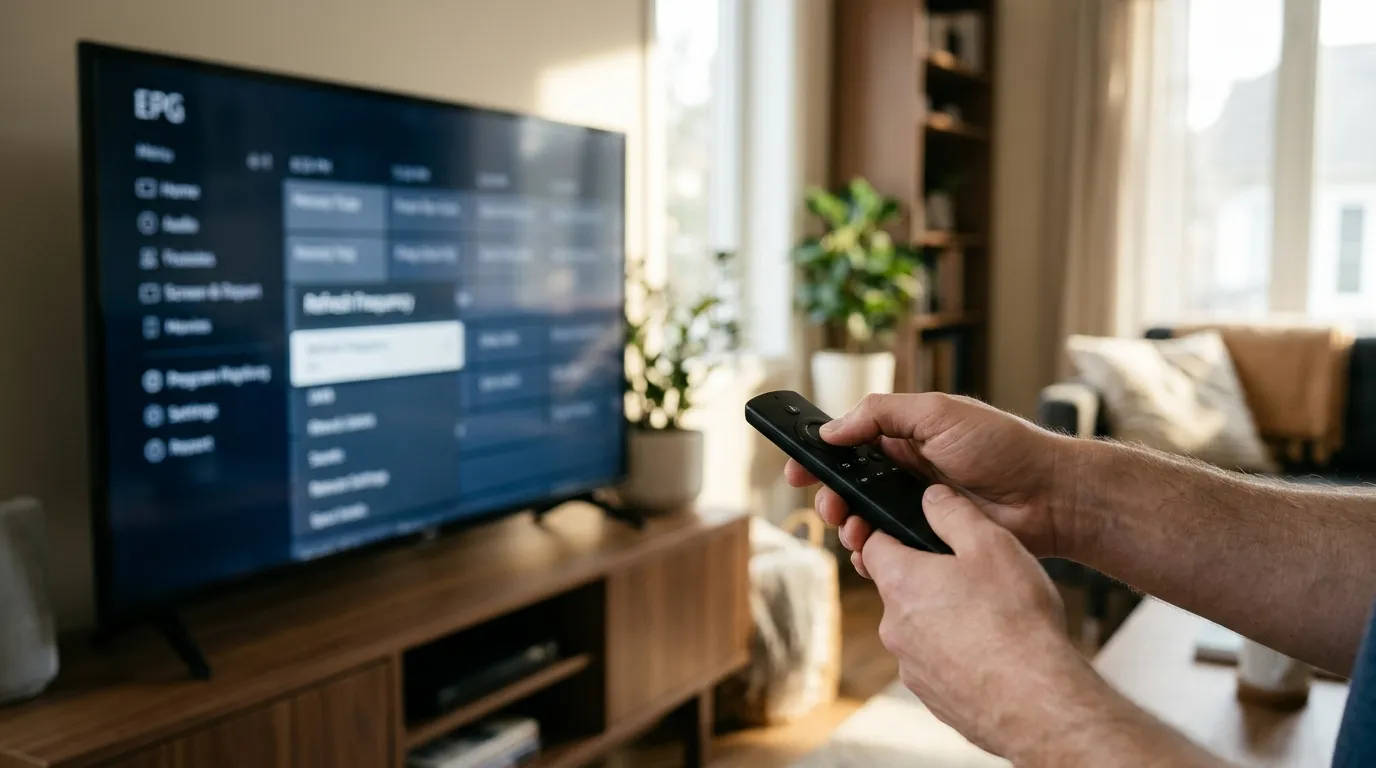
Set the refresh interval to something between 4 and 12 hours for daily-use setups. Every 4 hours is a reasonable sweet spot: frequent enough to catch guide updates, not so frequent that it hammers the server or slows your app down during use.
In TiviMate, this is under Settings → EPG → Update Interval. In IPTV Smarters Pro, look for EPG Update Frequency in the settings menu. After changing the interval, trigger a manual update immediately so you don't wait for the next scheduled refresh to confirm the fix worked.
One thing I'd add from experience: if you're testing a fix, don't rely on the automatic interval to confirm it. Always hit the manual refresh button. I once spent 20 minutes convinced a fix hadn't worked — the guide was still blank — before realizing the automatic refresh hadn't fired yet and the manual button was right there in the menu.
IPTV EPG Not Working on Specific Apps — App-by-App Fixes
The fix isn't identical across every app. Here's what works on the most common players.
TiviMate
TiviMate is the most popular IPTV player for Android-based devices, and its EPG handling is generally excellent — when configured correctly. The most common issue is that the EPG source is set to "From Playlist" but the playlist M3U doesn't include EPG tags. Switch the EPG source to a dedicated XMLTV URL from your provider. Find this under Settings → Playlists → [your playlist] → EPG Source.
IPTV Smarters Pro
IPTV Smarters Pro loads EPG data when you first add your playlist via the Xtream Codes or M3U URL method. If the guide is missing, delete the playlist entirely from within the app and re-add it. Don't just edit the URL — the app sometimes keeps old cached data even after an edit. A full re-add forces a fresh EPG pull.
MAG Boxes
MAG boxes pull EPG from the portal URL, not a separate XMLTV source. If the guide is broken on a MAG box, the issue is almost always at the portal level — contact your provider rather than digging through device menus.
Smart TVs (Samsung, LG)
Built-in IPTV apps on Smart TVs have limited EPG configuration options. If the guide breaks, the fastest fix is to reinstall the app and re-enter your credentials. For more control, sideload TiviMate or IPTV Smarters Pro if your TV's operating system supports it.
For a full breakdown of supported devices and which apps work best on each, see the multi device IPTV guide on the IPTV LEX blog.
When the Problem Is on Your Provider's Side
You've checked the URL, fixed the time zone, cleared the cache, and forced a refresh. The guide is still blank. At this point, the problem is almost certainly not on your end.
Provider-side EPG issues happen. EPG servers go down for maintenance, guide data feeds get interrupted, or a content update temporarily breaks the XML structure. These issues typically resolve within a few hours without you doing anything. The question is how to confirm that's what's happening.
The fastest way: contact your provider's support directly. With IPTV LEX, that's WhatsApp at +44 7988 580169 or email at support@iptvlex.com. A support agent can check the EPG server status in real time and tell you whether it's a known outage or something specific to your account. That single message saves you an hour of troubleshooting dead ends.
If you're evaluating a new service and want to test EPG quality before committing, an IPTV free trial is the right move. IPTV LEX offers a 24-hour free trial — request it on the Free Trial page with your name, email, and WhatsApp number. Test the guide on your actual device before you pay anything.
Prevent EPG Problems From Coming Back
Fixing the guide once is satisfying. Fixing it every two weeks is exhausting. A few habits keep EPG problems from recurring.
- Save your credentials somewhere safe. Your EPG URL, M3U link, username, and password should be in a notes app or password manager — not just in the email you might lose access to.
- Don't change your account password casually. Every URL tied to your account breaks the moment you do. If you need to change it, update every app on every device immediately after.
- Keep your apps updated. App developers push EPG-related bug fixes regularly. Running an outdated version of TiviMate or IPTV Smarters Pro is asking for problems that have already been fixed upstream.
- Set a sane refresh interval. Every 6–12 hours is the sweet spot for most users. Anything over 24 hours means you'll regularly see stale guide data.
- Restart your router monthly. Stale DNS caches on your router can cause intermittent failures when apps try to reach EPG servers. A monthly restart costs nothing and prevents a surprising number of odd network issues.
If you run IPTV across multiple screens in your household, keeping all apps on the same version and settings profile makes troubleshooting far easier. One device acting as the "reference" — the one you always check first — helps you quickly determine whether a guide problem is device-specific or account-wide. For households with multiple viewers, multi device IPTV plans from IPTV LEX support up to five simultaneous streams, with plans starting at $22.99 for one month on two devices.
When your IPTV EPG not working situation keeps recurring despite all fixes, the honest answer is that your provider's EPG infrastructure isn't reliable enough. A quality provider maintains its guide servers with the same priority as its streaming servers — because a working guide is part of a working service, not a nice-to-have extra. IPTV LEX includes EPG and catch-up in every plan precisely because the guide is part of the product, not an afterthought.
Frequently Asked Questions
Why is my IPTV EPG showing "No Information" on every channel?
This usually means the app loaded the EPG data successfully but can't match it to your channel list. The channel IDs in your M3U playlist don't align with the IDs in the EPG source. Get a matching EPG URL from your provider — one that's specifically paired with your playlist — and re-enter it in your app settings.
How often should my IPTV app update the EPG?
Every 6 to 12 hours is the right range for most users. Once every 24 hours is the common default but often too infrequent, especially if you watch live content where accurate scheduling matters. Set it to 6 hours and trigger a manual refresh after any settings change.
My EPG worked yesterday and broke today — what changed?
The most likely causes are a provider-side EPG server update that temporarily interrupted the feed, or an app update that reset your settings. Check that your EPG URL is still entered correctly, then force a manual refresh. If the URL is correct and the refresh fails, contact your provider's support to check server status.
Does clearing the app cache delete my playlist or login details?
Clearing cache alone does not delete your login credentials or playlist in most apps. Clearing app data (a separate option on Android devices) does remove saved logins. Clear cache first. Only clear data if cache-clearing alone doesn't fix the problem — and have your credentials ready to re-enter if you do.
Can I use a third-party EPG source instead of the one my provider gives me?
Yes, technically. Third-party XMLTV sources exist for many regions. The problem is channel ID matching: your playlist's channel IDs must match the IDs in whichever EPG source you use. Mismatched IDs produce a blank guide even when both the playlist and the EPG source are working perfectly. Your provider's own EPG URL is always the safest choice.
Does IPTV LEX include EPG with its plans?
Yes. Every IPTV LEX plan includes EPG guide data and catch-up TV. You receive the EPG URL along with your M3U playlist link when your account is activated. If the guide stops working at any point, the 24/7 WhatsApp support team can verify your EPG URL and check server status immediately. Plans start at $12.99 for one month on a single device, with longer terms available at significantly lower monthly rates.
Not sure yet? Test IPTV LEX free for 24 hours
- Full channel + VOD access
- Credentials by email
- Works on any device