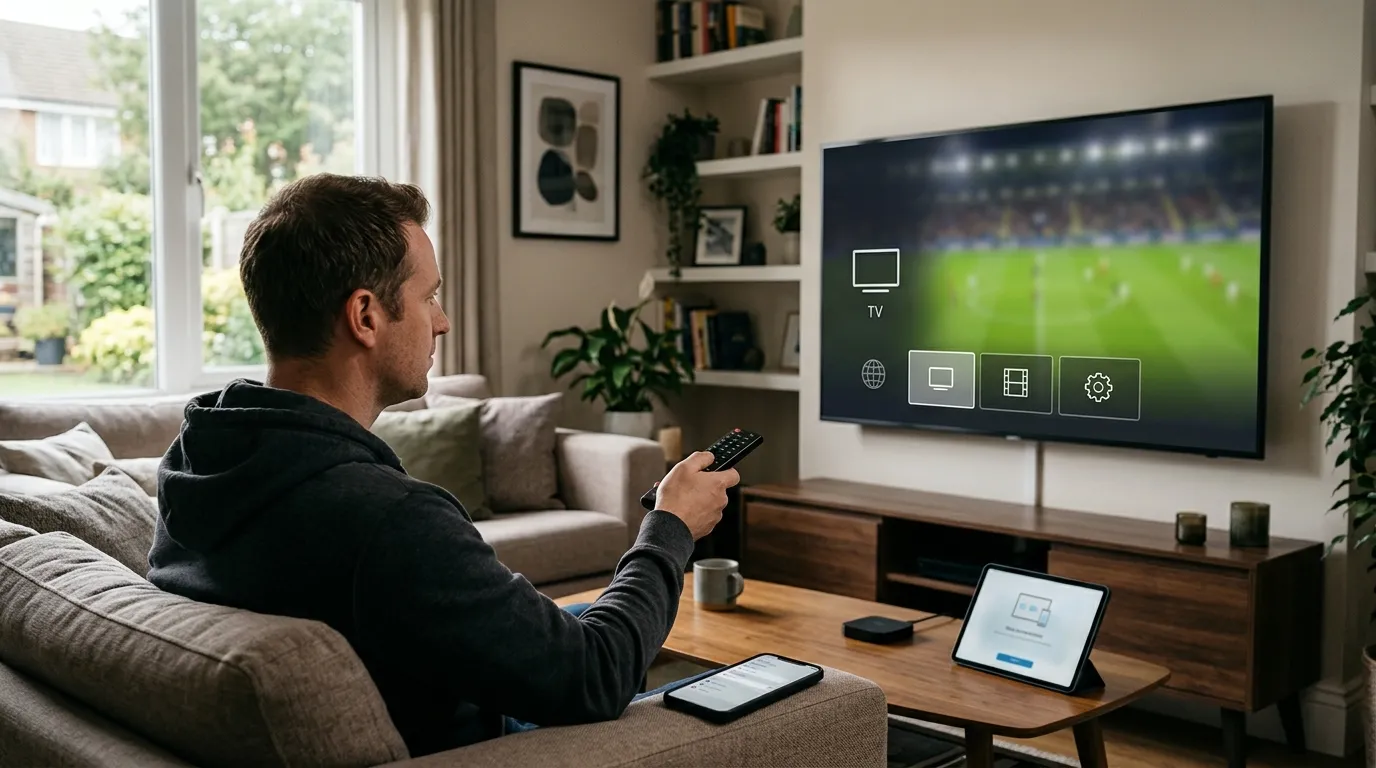
- Samsung Smart TVs (Tizen OS) do not have a native IPTV app in the Samsung App Store — you install via the Smart IPTV app or by sideloading an APK on compatible models.
- The easiest route for most users is Smart IPTV (SIPTV), available directly in the Samsung App Store on Tizen 4.0 and above.
- You need an active IPTV subscription with an M3U playlist URL or Xtream Codes login to load channels.
- IPTV LEX provides both M3U and Xtream Codes credentials immediately after purchase, with 25,000+ live channels and 60,000+ on-demand titles.
- A 24-hour free trial is available — no payment required upfront.
- If your Samsung TV runs Android TV (some newer models), the setup is different and faster — you can install IPTV Smarters Pro directly from the Play Store.
What You Actually Need Before You Start
Getting IPTV running on a Samsung TV takes about ten minutes once you have two things sorted: a working internet connection and an IPTV subscription that hands you either an M3U URL or Xtream Codes credentials. Without those credentials, no app in the world will show you a single channel. That's the part most guides skip, so let's address it first.
Your Samsung TV also needs to be connected to the internet — wired Ethernet is better than Wi-Fi for streaming, especially at 4K. A minimum of 25 Mbps is comfortable for HD, and 50 Mbps or more keeps 4K stable. If your connection drops below that threshold regularly, sort the network first, because buffering on a TV is far more annoying than buffering on a phone.
Check Your Samsung TV's Operating System
This is the step that trips people up. Samsung makes TVs on two different operating systems:
- Tizen OS — the vast majority of Samsung Smart TVs from 2015 onward. The App Store here is limited, and IPTV Smarters Pro is not available. You use Smart IPTV (SIPTV) instead.
- Android TV — a smaller number of Samsung models (and some rebranded panels). If your TV has the Google Play Store, you can install IPTV Smarters Pro directly.
To check, go to Settings → Support → About This TV. If you see "Tizen" in the system info, follow the Tizen path below. If you see Android version numbers, follow the Android TV path.
What You'll Have Ready
- Your M3U playlist URL (sent by your provider after signup)
- Or your Xtream Codes server URL, username, and password
- Your Samsung TV's MAC address (needed for Smart IPTV activation)
- A second screen — phone or laptop — to activate Smart IPTV online
You can grab a IPTV free trial from IPTV LEX before spending anything, which is smart if you want to test stream quality on your specific TV and connection before committing.
How to Install IPTV on Samsung TV Using Smart IPTV (Tizen OS)
Smart IPTV — usually written as SIPTV — is the most reliable app for Tizen-based Samsung TVs. It's been around for years, it's stable, and it handles large M3U playlists without choking. Here's the exact process.
Step 1: Install the Smart IPTV App
- Press the Home button on your Samsung remote.
- Navigate to Apps and open the Samsung App Store (the magnifying glass icon).
- Search for Smart IPTV.
- Select the app and click Install. It takes under a minute.
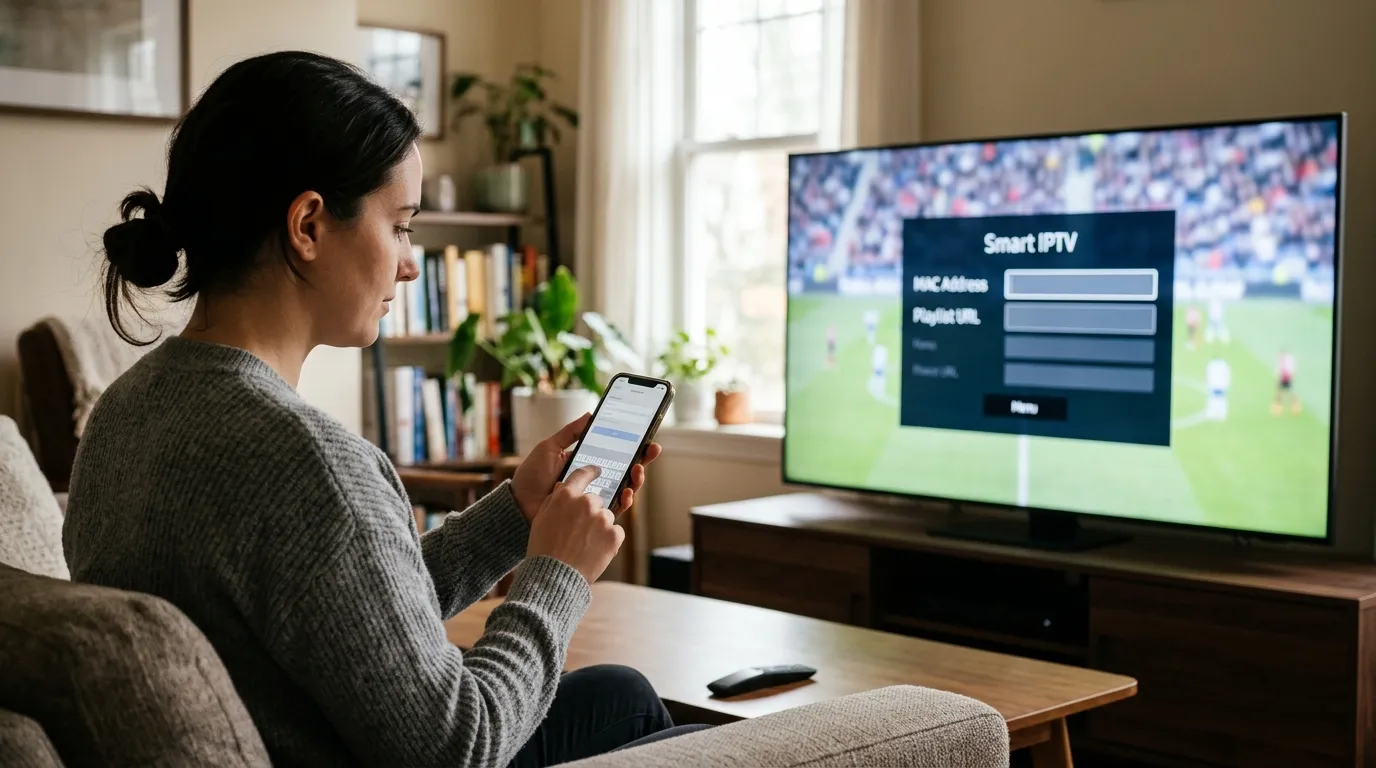
- Once installed, open Smart IPTV. You'll see a screen displaying your TV's MAC address — write this down or photograph it. You need it for the next step.
Step 2: Activate and Load Your Playlist
- On your phone or laptop, go to siptv.eu.
- Enter your TV's MAC address in the field provided.
- Paste your M3U URL into the playlist field.
- Click Upload. The site processes your playlist and pushes it to the app.
- Back on your TV, close Smart IPTV and reopen it. Your channels should now load.
One thing I learned the hard way: if your M3U URL contains special characters (some providers generate URLs with ampersands and encoded strings), paste it into a plain text editor first to make sure it copied cleanly. A single corrupted character breaks the whole playlist load. Wasted about 20 minutes on that the first time.
Smart IPTV has a one-time activation fee of around €5.49 after a 30-day free trial period. That's a one-time cost, not a subscription. For a complete look at compatible devices and setup paths, the multi device IPTV guide covers everything from Samsung to Firestick to Apple TV.
Installing IPTV on Samsung Android TV Models
If your Samsung TV runs Android TV, you're in luck — the setup is faster and gives you access to better apps. IPTV Smarters Pro is the gold standard here, and it's free to download.
Step 1: Download IPTV Smarters Pro
- Press Home and open the Google Play Store.
- Search for IPTV Smarters Pro.
- Install it — the file is small, under 20 MB.
Step 2: Add Your IPTV Service
- Open IPTV Smarters Pro and tap Add User.
- Choose your login method: Xtream Codes API (if your provider gave you a server URL, username, and password) or M3U URL.
- Enter the credentials IPTV LEX sent you after signup.
- Tap Add User to confirm. The app fetches your channel list and VOD library.
IPTV Smarters Pro also supports EPG (Electronic Programme Guide), so you get a proper TV guide showing what's on and what's coming up — a feature that makes a real difference when you're browsing 25,000+ channels. You can also access the full IPTV setup guide on the IPTV LEX blog for deeper configuration tips, including EPG URL setup and parental controls.
Xtream Codes vs. M3U — Which Should You Use?
| Method | Best For | Pros | Cons |
|---|---|---|---|
| Xtream Codes API | IPTV Smarters Pro, TiviMate | Faster load, VOD categories, catch-up support | Needs server URL + username + password |
| M3U URL | Smart IPTV, most players | Universal compatibility, single link | Slower to load large playlists |
How to Sideload IPTV Apps on Samsung Tizen TVs
Sideloading — installing an APK file directly onto your TV — is possible on some Samsung Tizen models, but it's not straightforward and Samsung doesn't officially support it. For most people, Smart IPTV is the better path. But if you specifically want IPTV Smarters Pro on a Tizen TV, here's what's involved.
You need to put your TV into Developer Mode, then use Samsung's Smart Development Bridge (SDB) tool from a Windows PC on the same network. The process requires downloading the Tizen Studio IDE, packaging the APK as a Tizen widget file (.wgt), and deploying it via command line. It's genuinely technical and can be undone by a firmware update.
My honest take: unless you're comfortable with developer tools, don't bother. Smart IPTV does the job cleanly, and if you want the full Smarters Pro experience, a IPTV LEX multi-device plan lets you run it simultaneously on a Firestick or Android box connected to the same TV via HDMI — same channels, better app.
That said, if you do go the sideload route, make sure your Samsung TV is on firmware version 1100 or later, and check that Developer Mode hasn't been automatically disabled after 10 hours (Samsung resets it on restart by default — something that catches a lot of people off guard).
Choosing the Right IPTV LEX Plan for Your Samsung TV
Once the app is installed, you need an actual service behind it. IPTV LEX is built for exactly this — 25,000+ live channels from 150+ countries, 60,000+ movies and series on demand, and streams in HD, FHD, and 4K. The anti-freeze server infrastructure matters more than people realize: a provider with weak servers will buffer constantly regardless of how fast your home internet is.
Plans are priced per device and paid once — no auto-renewal. Here's the current lineup for a single device:
| Plan | Price | Monthly Cost |
|---|---|---|
| 1 Month | $12.99 | $12.99 |
| 3 Months | $34.99 | ~$11.66 |
| 6 Months (most popular) | $49.99 | ~$8.33 |
| 12 Months | $59.99 | ~$5.00 |
| 24 Months | $99.99 | ~$4.17 |
If you're setting up IPTV across multiple screens — your Samsung TV in the living room, a tablet, and a phone — multi device IPTV plans cover 2 to 5 simultaneous streams. Two devices for one month runs $22.99; five devices for 12 months is $229.99. All plans are available on the IPTV free trial and pricing page.
Payment options include credit and debit card, cryptocurrency (USDT, BTC, ETH, SOL, LTC), gift card, and bank transfer. Login credentials arrive by email right after payment.
Troubleshooting Common IPTV Problems on Samsung TVs
Something not working? Most problems fall into one of four categories, and most of them are fixable in under five minutes.
Channels Not Loading or App Shows a Blank Screen
This almost always means the M3U URL didn't copy correctly or the playlist hasn't been pushed to the app yet. On Smart IPTV, revisit siptv.eu, re-enter your MAC address, and re-upload the URL. Then close and reopen the app on your TV. Give it 60 seconds — large playlists take a moment to parse.
Buffering Mid-Stream
Buffering is either a network issue or a server issue. Test your internet speed directly on the TV if possible (Samsung has a built-in network test under Settings → General → Network → Network Status). If speeds look fine, try switching to a different stream quality in the app (drop from 4K to FHD temporarily). If the problem persists across multiple channels, contact your provider — it may be a server-side issue during peak hours.
Smart IPTV App Not Appearing in Samsung App Store
This happens on older Tizen versions. The app requires Tizen 4.0 or above. Check your TV's software version under Settings → Support → Software Update and update if available. If your TV is too old to update, a dedicated Android TV box connected via HDMI is a cleaner solution than fighting the limitations of old firmware.
MAC Address Not Recognized on siptv.eu
Some Samsung TVs display a different MAC address when connected via Ethernet versus Wi-Fi. If the site rejects your MAC, switch your TV's connection type and recheck the MAC address displayed in the Smart IPTV app — it updates to reflect the active connection.
For anything that falls outside these scenarios, IPTV LEX support is available 24/7 on WhatsApp (+44 7988 580169) or at support@iptvlex.com. The IPTV subscription FAQ page also covers the most common account and streaming questions in detail.
Getting the Best Picture Quality on Your Samsung TV
Installing the app is half the job. Getting it to look genuinely good on a modern Samsung panel takes a few more tweaks.
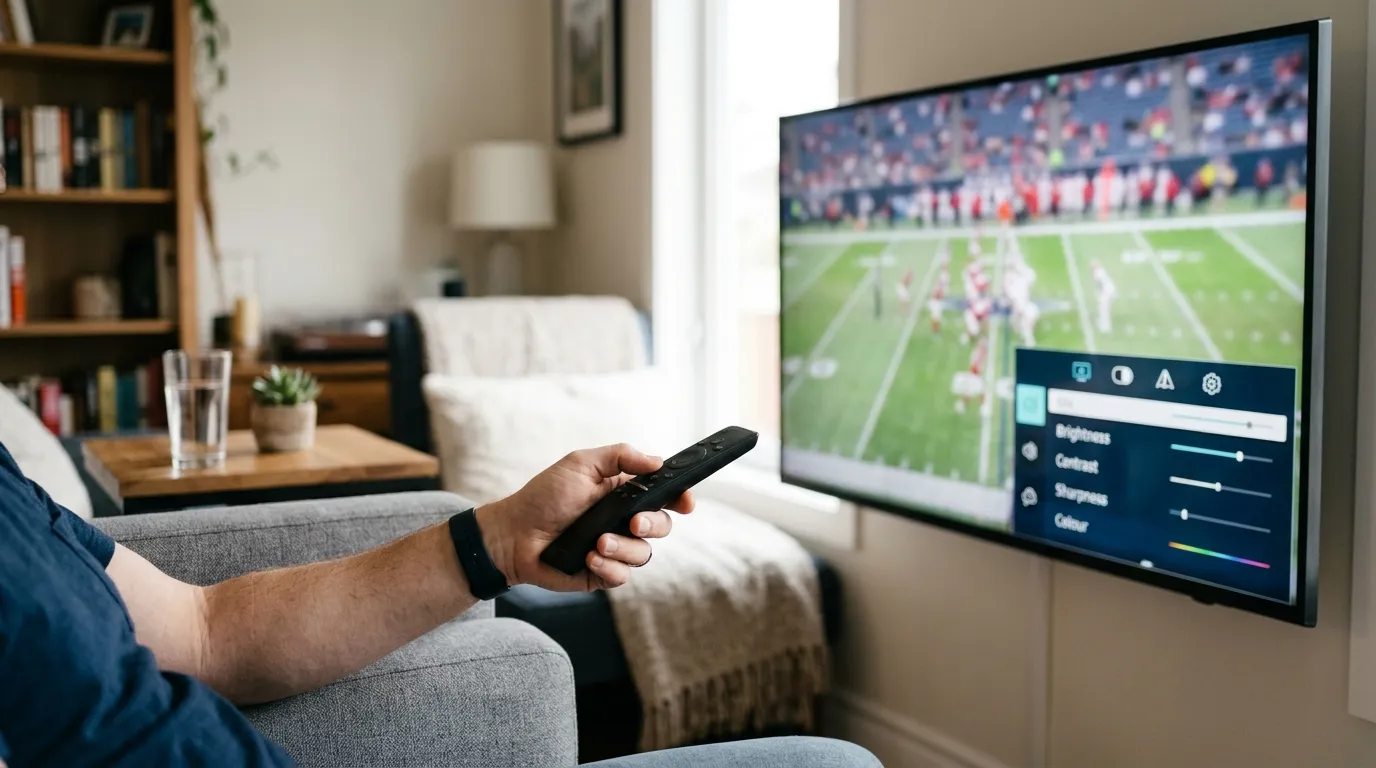
Turn Off Motion Smoothing
Samsung's Auto Motion Plus (also called "Soap Opera Effect" by most people who hate it) artificially smooths motion and makes live sports and film content look cheap and over-processed. Go to Settings → Picture → Expert Settings → Auto Motion Plus and set it to Off or Custom with both Blur Reduction and Judder Reduction at zero.
Use the Right Picture Mode
For IPTV content, Movie or Filmmaker Mode (available on 2020 and newer Samsung TVs) gives the most accurate, unprocessed image. Standard and Dynamic modes crank up sharpness and color saturation in ways that look impressive in a showroom but fatiguing at home.
Prioritize Wired Ethernet
Wi-Fi works, but a physical Ethernet cable eliminates the packet loss and latency spikes that cause micro-stutters in 4K streams. If running a cable isn't practical, position your router as close to the TV as possible and use the 5 GHz band rather than 2.4 GHz.
Match Your TV's Refresh Rate to the Stream
Most live TV streams are 50 Hz (PAL regions) or 60 Hz (NTSC regions). If your Samsung TV is set to a mismatched refresh rate, you may see judder. Under Settings → Picture → Expert Settings, look for Auto Frame Rate or HDMI UHD Color settings and enable them if your TV supports it.
The combination of a good IPTV source and correct TV settings makes a genuine difference. IPTV LEX streams in HD, FHD, and 4K, so the ceiling is high — it's worth spending ten minutes on the picture settings to actually reach it.
How to Install IPTV on Samsung TV Without a Smart TV App
What if your Samsung TV is older, or the App Store simply doesn't carry what you need? You have two clean options that don't require touching the TV's software at all.
Option 1: Amazon Firestick or Fire TV Stick
Plug a Firestick into any HDMI port on your Samsung TV. The Firestick runs its own OS, has the Amazon App Store, and allows sideloading via Downloader. You can install IPTV Smarters Pro or TiviMate directly. Switch the TV's input to that HDMI port and you're running a full IPTV setup independent of Samsung's software entirely.
Option 2: Android TV Box
An Android TV box (NVIDIA Shield, or a budget Android box) connects the same way via HDMI. These run full Android TV, so the Google Play Store is available and you can install any IPTV player you want. The NVIDIA Shield is the premium choice — it handles 4K HDR without breaking a sweat and has enough processing power that you'll never see the app lag.
Both options work perfectly with an IPTV subscription from IPTV LEX. Your M3U URL or Xtream Codes credentials work on any device — you're not locked to one screen. And if you want to run two or more devices at the same time, a IPTV LEX multi-device plan is the straightforward way to handle that without buying separate subscriptions.
I've personally run IPTV LEX on a Firestick 4K Max plugged into an older Samsung TV for over a year. The TV itself is just a display at that point — all the intelligence is in the stick. It's a genuinely practical setup, especially if you already own a Firestick or can pick one up inexpensively.
Whether you go through the Samsung App Store, sideload, or use an external device, the process of learning how to install IPTV on Samsung TV is a one-time investment. Once it's set up, you have access to a library of live channels and on-demand content that no single cable package comes close to matching.
Frequently Asked Questions
Can I install IPTV Smarters Pro directly on a Samsung Smart TV?
Not on Tizen-based Samsung TVs — IPTV Smarters Pro is not available in the Samsung App Store. Your options are Smart IPTV (available in the App Store), sideloading via Developer Mode (technical, not recommended for most users), or using an external device like a Firestick plugged into your TV's HDMI port. If your Samsung TV runs Android TV, you can install Smarters Pro directly from the Google Play Store.
Do I need to pay for the Smart IPTV app separately from my IPTV subscription?
Yes. Smart IPTV (SIPTV) has its own one-time activation fee of around €5.49, charged after a 30-day free trial. This is separate from your IPTV service subscription. Think of the app as the player and your subscription as the content — you need both. The IPTV LEX subscription provides your M3U URL or Xtream Codes credentials; Smart IPTV is the app that reads them on your Samsung TV.
How do I find my Samsung TV's MAC address for Smart IPTV?
Open the Smart IPTV app on your TV — the MAC address is displayed on the startup screen before any channels load. Alternatively, go to Settings → General → Network → Network Status → IP Settings on your Samsung TV to find the MAC address in the network details. Note that the MAC address differs between Wi-Fi and Ethernet connections, so make sure you're reading the one that matches your active connection type.
Why are my IPTV channels buffering on my Samsung TV?
Buffering usually comes from one of three sources: slow internet (test for at least 25 Mbps for HD, 50 Mbps for 4K), Wi-Fi interference (try Ethernet instead), or a provider with overloaded servers. If your speeds are fine and the issue persists across many channels, the problem is server-side. IPTV LEX runs anti-freeze servers specifically to minimize this — if you're experiencing consistent buffering, contact support on WhatsApp (+44 7988 580169) and they can check server status or switch your account to a different server node.
Can I try IPTV LEX before buying a full subscription?
Yes. IPTV LEX offers a 24-hour IPTV free trial — you request it on the Free Trial page with your name, email, and WhatsApp number. No payment is required. It's a genuine test of the full service, so you can verify stream quality, channel availability, and app compatibility on your specific Samsung TV before committing to a paid plan.
What happens if I want to use IPTV on multiple TVs in my house?
IPTV LEX offers multi-device plans covering 2 to 5 simultaneous streams. A 2-device plan starts at $22.99 for one month; a 5-device plan for 12 months is $229.99. Each device gets its own login, and you can mix device types — Samsung TV in the living room, a tablet in the bedroom, a phone for travel. The full breakdown is on the multi device IPTV devices page.
Not sure yet? Test IPTV LEX free for 24 hours
- Full channel + VOD access
- Credentials by email
- Works on any device