- Roku does not have a native IPTV app, so you stream IPTV through screen mirroring or a companion device connected to the same TV.
- The most reliable method is pairing Roku with an Android device running an IPTV player like IPTV Smarters Pro, then mirroring the screen to Roku.
- IPTV LEX provides the M3U playlist URL and EPG link you need to configure any IPTV player — setup takes under ten minutes.
- You get access to 25,000+ live channels, 60,000+ movies and series, HD/FHD/4K streams, and catch-up TV in one subscription.
- A 24-hour free trial is available — no credit card required upfront — so you can test streams on your Roku before committing.
- Multi-device plans start at $22.99/month for two simultaneous streams, which works well if you have Roku devices in more than one room.
Why Installing IPTV on Roku Is a Bit Different From Other Devices
If you've already figured out how to install IPTV on Roku, you know the platform has a closed app store — Roku doesn't let you sideload APKs the way Android does. That one fact changes everything about the setup process. You can't just install IPTV Smarters Pro directly from the Roku Channel Store, because it isn't there.
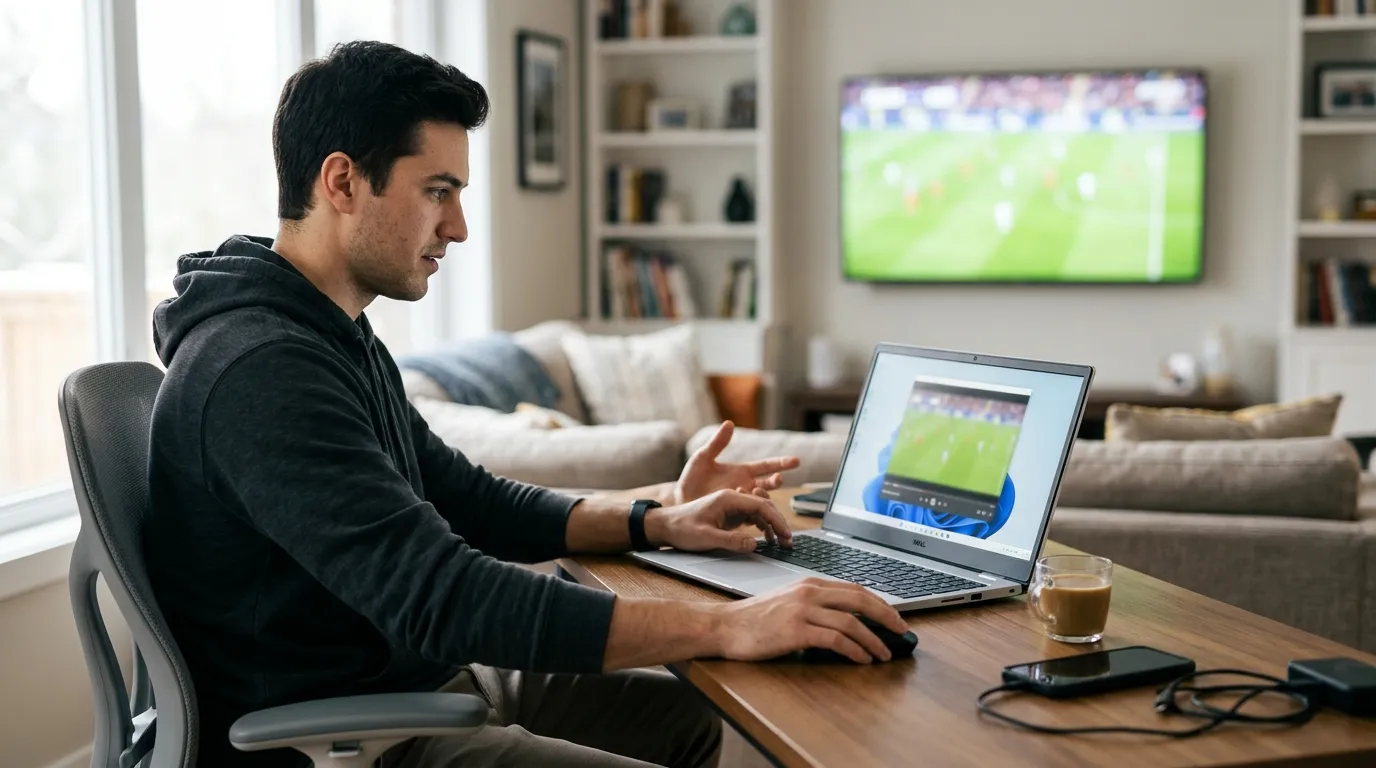
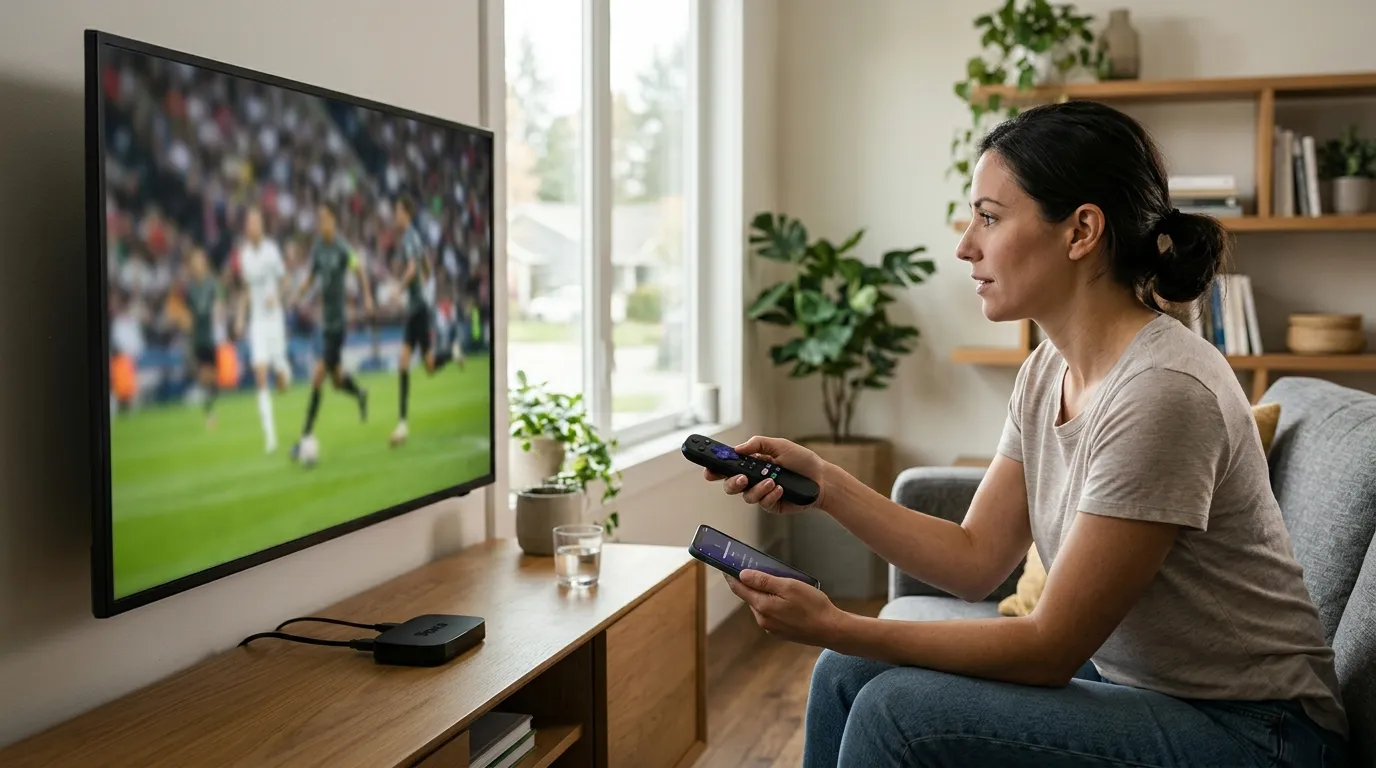
So what do you actually do? You use Roku's built-in screen mirroring feature. Run your IPTV player on a phone, tablet, or PC, mirror that screen to Roku, and your TV becomes the display. It sounds like a workaround — and it is — but once it's running, the experience is smooth. I've been using this setup on a Roku Streaming Stick+ for over a year, and guests never notice the difference.
There's also a second method worth knowing: some Roku users connect an Android TV box to the same TV via HDMI and switch inputs when they want IPTV. That gives you a fully native app experience on the Android box while keeping Roku for everything else. Either way, the first thing you need is a solid IPTV LEX subscription that gives you a working M3U URL to paste into your player.
What You Need Before You Start the Setup
Getting organized before you touch any settings saves you from the frustrating back-and-forth I went through the first time. I spent 20 minutes troubleshooting a connection that turned out to be a typo in my M3U URL — completely avoidable.
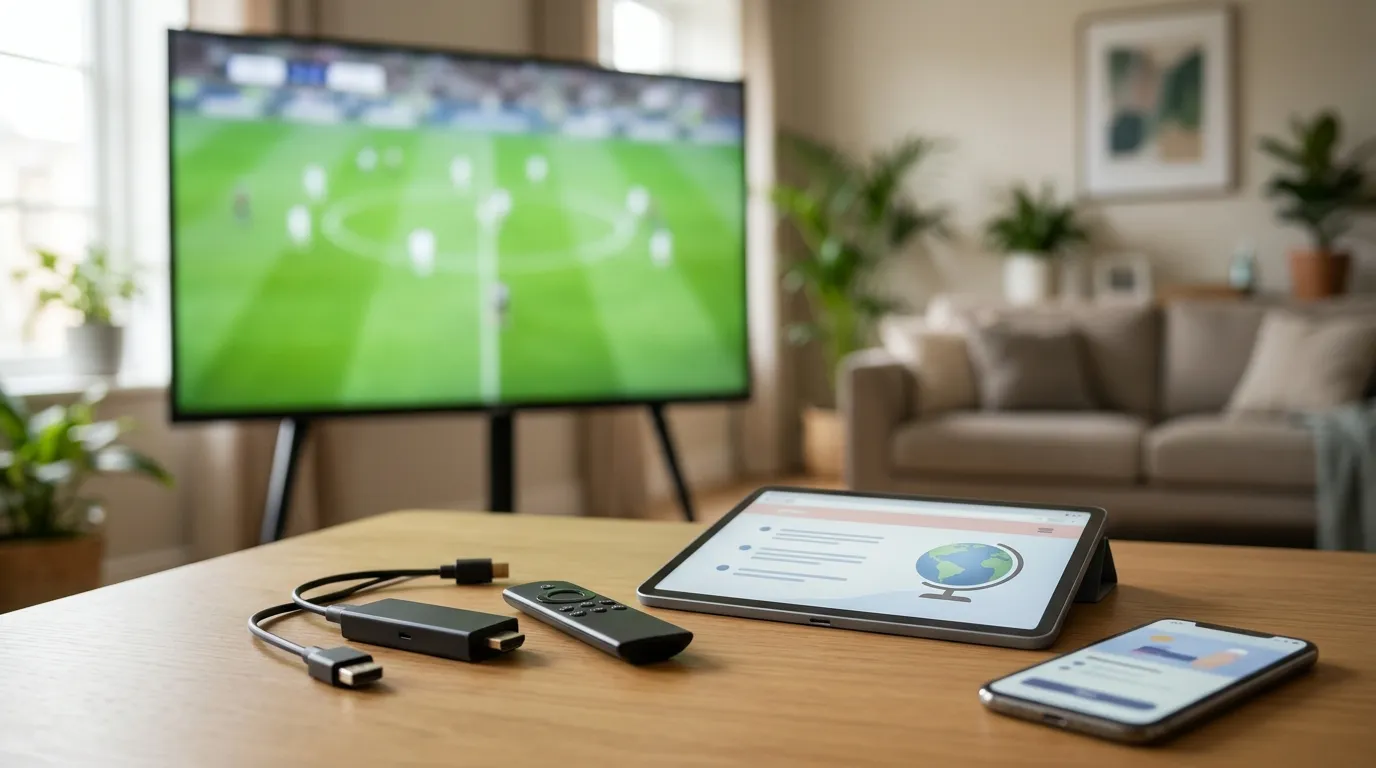
Hardware and software checklist
- A Roku device (Streaming Stick, Roku Express, Roku Ultra, or a Roku TV)
- An Android phone, Android tablet, or Windows PC (for the mirroring method)
- A stable Wi-Fi connection — 10 Mbps minimum for HD, 25 Mbps for 4K
- An IPTV player app: IPTV Smarters Pro or TiviMate work best
- Your IPTV credentials: M3U URL or Xtream Codes (host, username, password)
Getting your IPTV credentials
Once you pick an IPTV subscription from IPTV LEX, login details land in your email within minutes of payment. That email contains your M3U playlist link and your Xtream Codes login — keep it open on your phone while you set up the player. You'll paste those details directly into IPTV Smarters Pro or TiviMate during the configuration step.
Don't have a subscription yet? The IPTV free trial from IPTV LEX runs for 24 hours and gives you full access to the channel lineup. Request it with your name, email, and WhatsApp number on the free trial page — no payment details needed.
How to Enable Screen Mirroring on Roku
Screen mirroring is the core of this whole setup. Roku calls it "Screen Mirroring" and it uses the Miracast protocol — the same one most Android phones support natively. Here's exactly how to switch it on.
- Press the Home button on your Roku remote.
- Go to Settings → System → Screen Mirroring.
- Set Screen Mirroring Mode to Always Allow (or Prompt if you want to approve each connection manually).
- Note the name of your Roku device — you'll select it from your phone in the next step.
One setting most guides skip: make sure your Roku and your Android device are on the same Wi-Fi network. If your router broadcasts separate 2.4 GHz and 5 GHz bands with different names, both devices need to be on the same band. I once spent 15 minutes wondering why my phone couldn't find the Roku — they were on different bands. Lesson learned.
On your Android phone, pull down the quick-settings panel and tap Smart View, Screen Cast, or Wireless Display (the label varies by manufacturer). Your Roku device should appear in the list. Tap it, accept the prompt on the Roku if you chose the Prompt setting, and your phone screen appears on the TV.
For a full breakdown of compatible IPTV LEX devices beyond Roku, the devices page covers every supported platform from Amazon Firestick to Apple TV and MAG boxes.
How to Install and Configure IPTV Smarters Pro for Roku Mirroring
IPTV Smarters Pro is the player most IPTV LEX subscribers use on Android. It's free on the Google Play Store and supports both M3U playlists and Xtream Codes — the two formats IPTV LEX provides.
Installing the app
- Open Google Play Store on your Android device.
- Search IPTV Smarters Pro and install it.
- Open the app and tap Add User.
Configuring with Xtream Codes (recommended)
- Select Login with Xtream Codes API.
- Enter a name for the profile (anything works — "IPTV LEX" is fine).
- Paste your server URL, username, and password from the email IPTV LEX sent you.
- Tap Add User. The app loads your channel list — 25,000+ channels, so give it 30–60 seconds on first load.
Configuring with an M3U URL
- Select Load Your Playlist or File/URL.
- Paste your M3U URL into the URL field.
- Add your EPG URL in the EPG field — IPTV LEX includes this in the same credentials email.
- Tap Add User.
Once the playlist loads, mirror your Android screen to Roku using the steps above. Open any channel in IPTV Smarters Pro and it plays full-screen on your TV. The EPG guide shows program schedules directly in the app, so you can browse what's on without leaving the interface. Check the full IPTV subscription options if you plan to run this on more than one device at the same time.
Using TiviMate as an Alternative Player
TiviMate is the other player worth knowing. A lot of experienced IPTV users actually prefer it over IPTV Smarters Pro because the EPG grid looks cleaner and channel switching is faster. The free version works fine; TiviMate Premium (a one-time purchase on Google Play) adds multiple playlists, parental controls, and recording.
Setup in TiviMate follows the same logic:
- Install TiviMate from Google Play.
- Open it and tap Add Playlist.
- Choose Xtream Codes or M3U Playlist and enter your IPTV LEX credentials.
- Add the EPG URL when prompted — TiviMate pulls a full 7-day program guide.
Why choose TiviMate over IPTV Smarters Pro? The channel grouping is more intuitive, and the catch-up feature (watching content from the past 24–72 hours) integrates more cleanly into the guide. IPTV LEX's anti-freeze servers mean both players perform well, but TiviMate's buffer settings give you finer control. Go to Settings → Player → Buffer Size and set it to 10 seconds if you ever see occasional stuttering on a busy network.
Either player mirrors to Roku identically. The TV doesn't know or care which app is running — it just displays whatever your Android screen shows. For a broader look at which players work across all devices, the multi device IPTV channel guide is worth bookmarking.
Screen Mirroring From Windows to Roku
Don't have an Android device? Windows 10 and Windows 11 both support Miracast, which means you can mirror directly from a laptop or desktop to Roku. This is genuinely useful if your phone is an iPhone — iOS doesn't support Miracast, so the Windows route becomes your best option without buying extra hardware.
Steps for Windows mirroring
- Make sure Roku screen mirroring is enabled (see the earlier section).
- On Windows, press Win + K to open the Cast panel.
- Your Roku device appears in the list — click it.
- Windows mirrors your desktop to the Roku display.
For the IPTV player on Windows, use IPTV Smarters Pro's web interface or install a Windows-compatible player like VLC with your M3U URL. In VLC: go to Media → Open Network Stream, paste your M3U URL, and hit Play. It's not as polished as TiviMate, but it works reliably for live channels.
One practical tip: set Windows display scaling to 100% before mirroring. At 125% or 150% scaling (common on high-DPI laptops), some IPTV player interfaces look slightly blurry on the TV. Dropping to 100% during your IPTV session fixes it instantly.
If you want a cleaner long-term setup than screen mirroring allows, consider pairing your Roku TV with an Android TV box via HDMI. You'd run the IPTV setup guide natively on the Android box and just switch HDMI inputs when you want live TV. It's a two-device solution, but the picture quality and responsiveness are noticeably better than mirroring.
IPTV LEX Plans and Pricing for Roku Users
Once you've confirmed the setup works during the free trial, picking the right plan saves money over time. IPTV LEX pricing is straightforward — single payment, no auto-renewal, no surprise charges.
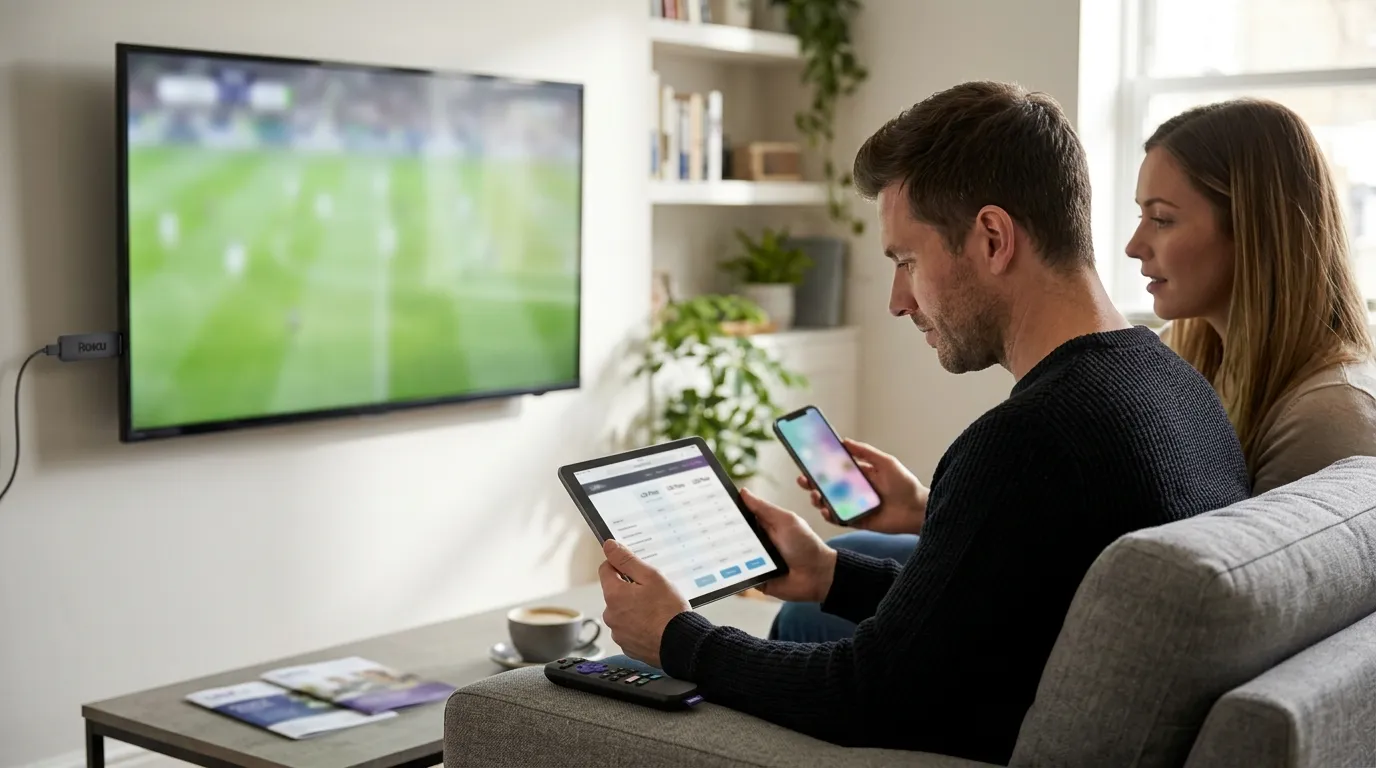
| Plan (1 Device) | Price | Monthly Equivalent |
|---|---|---|
| 1 Month | $12.99 | $12.99 |
| 3 Months | $34.99 | ~$11.66 |
| 6 Months (most popular) | $49.99 | ~$8.33 |
| 12 Months | $59.99 | ~$5.00 |
| 24 Months | $99.99 | ~$4.17 |
If you have Roku devices in multiple rooms — or if other people in the house watch at the same time — multi-device plans make more sense. Two simultaneous streams cost $22.99 for one month or $107.99 for twelve months. Three simultaneous streams are $29.99 and $144.99 respectively. You can compare all tiers on the IPTV subscription pricing page.
Payment options are wider than most services offer: credit or debit card, cryptocurrency (USDT, BTC, ETH, SOL, LTC), gift cards, and bank transfer. If privacy matters to you, the crypto route is worth considering. Login credentials arrive by email after payment — usually within a few minutes.
Troubleshooting Common IPTV on Roku Problems
Most issues fall into a handful of categories. Here's what actually fixes them, based on real experience rather than generic advice.
Screen mirroring drops or lags
- Move your Roku and Android device closer to the router, or switch to a 5 GHz Wi-Fi band for both.
- Close background apps on your Android device — they compete for CPU and Wi-Fi bandwidth.
- Restart the Roku (Settings → System → System Restart) before starting a mirroring session.
Channels buffer or freeze
- In IPTV Smarters Pro, go to Settings → Player Settings and switch the player from the default to ExoPlayer. It handles higher-bitrate 4K streams better.
- In TiviMate, increase the buffer size to 10 seconds as mentioned earlier.
- Run a speed test on your phone. You need at least 10 Mbps for HD and 25 Mbps for 4K. If speeds are fine, the issue is almost certainly the player settings, not the server — IPTV LEX runs anti-freeze infrastructure specifically to prevent server-side stuttering.
M3U playlist won't load
- Copy the URL directly from the credentials email — don't retype it manually. A single wrong character breaks the link.
- Check that your subscription is active. If you're on the free trial, it expires after 24 hours.
- Contact IPTV LEX support on WhatsApp (+44 7988 580169) or at support@iptvlex.com — 24/7 support means someone responds quickly regardless of your time zone.
EPG guide shows no data
The EPG URL is separate from the M3U URL. Go back into your player's playlist settings and confirm the EPG field is filled in with the URL from your credentials email. After adding it, force a refresh — in TiviMate that's Settings → EPG → Update EPG Now.
For anything beyond these common fixes, the IPTV LEX FAQ covers a wide range of setup and troubleshooting scenarios across all supported devices and players.
Frequently Asked Questions
Can you install IPTV directly on a Roku device without a phone or PC?
Not through the official Roku Channel Store — there are no IPTV player apps available there. The practical solution is screen mirroring from an Android phone, Android tablet, or Windows PC. Alternatively, connect an Android TV box to the same TV via HDMI and run your IPTV player natively on that device.
Does screen mirroring reduce picture quality on Roku?
There is a small quality trade-off compared to a native app, because the stream is compressed during the wireless mirroring process. In practice, on a fast 5 GHz Wi-Fi network, the difference is hard to spot on HD content. For 4K, the native Android TV box route gives noticeably better results.
How many channels does IPTV LEX include?
IPTV LEX carries 25,000+ live TV channels from more than 150 countries, plus 60,000+ movies and series on demand. Streams are available in HD, FHD, and 4K depending on the source broadcast. The content library updates regularly, and an EPG guide with catch-up is included in every plan.
Can I use one IPTV LEX subscription on multiple Roku devices?
A single-device plan covers one simultaneous stream. If you want to watch on two or more Roku setups at the same time, you need a multi-device plan. Two simultaneous streams start at $22.99/month; plans scale up to five simultaneous streams. See all options on the IPTV subscription multi-device page.
Is there a free trial before I buy an IPTV LEX subscription?
Yes. IPTV LEX offers a 24-hour IPTV free trial with full access to the channel lineup. You request it by submitting your name, email address, and WhatsApp number on the free trial page. No payment details are required to get the trial.
What payment methods does IPTV LEX accept?
IPTV LEX accepts credit and debit cards (via a secure payment link sent by email), cryptocurrency (USDT, BTC, ETH, SOL, LTC), gift cards, and bank transfer. All plans are a single one-time payment — there is no automatic renewal. Your login credentials arrive by email after payment is confirmed.
Not sure yet? Test IPTV LEX free for 24 hours
- Full channel + VOD access
- Credentials by email
- Works on any device